One Business Application, Many Front Doors: Rethinking App Development with MCP Apps
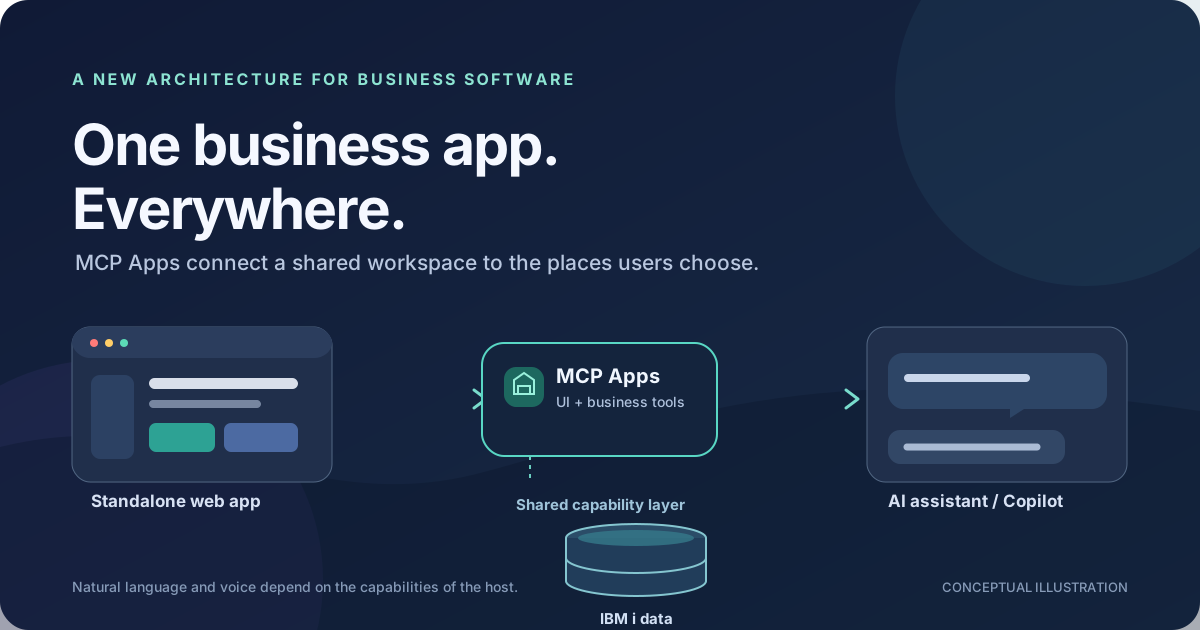
What if people could use the same business application in the place that suits them?
One person might open a familiar standalone web app. Another might ask an assistant to find something and work with the application right inside the conversation. A third might use a company’s Microsoft Copilot experience. And, where the client supports it, the person might speak instead of type.
This is the direction I am exploring with MCP Apps and my IBM i Sales Workspace. It is more than adding a chatbot to an existing application: it changes how we can think about the relationship between business capabilities, user interfaces, and the host applications people already use.
From one application per platform to one capability, many experiences
Traditionally, a business system’s interface is tightly coupled to where it runs. A browser gets a web app; a collaboration platform gets its own component; a mobile client may need another implementation. Each can end up duplicating UI and integration logic, even when all of them are trying to work with the same business data.
The Model Context Protocol (MCP) provides a standard way for an MCP client to discover and call tools exposed by an MCP server. MCP Apps build on that model by allowing a server to offer an interactive user interface associated with its tools. A compatible host can render that UI and connect it to the server through the MCP Apps bridge.
The important shift is that an application can be more than a page that owns its API calls. It can expose:
- Business capabilities as typed, discoverable MCP tools.
- An interactive interface as an MCP App resource that a compatible host can display.
- A standalone experience that uses the same capabilities and can render the same workspace outside a conversation.
That creates a useful separation: the business application provides its functionality, while the user can choose a supported place to interact with it. The host still matters, though. MCP Apps do not mean every UI bundle runs unchanged in every assistant or platform. A host must support the relevant MCP Apps behavior, and integrations may need host-specific work.
The IBM i Sales Workspace: one service, three ways in
My IBM i sample makes the idea concrete. It connects a React sales workspace to IBM i Db2 through a Node.js MCP server and Mapepire. The server registers the business tools and serves the workspace as an MCP App resource. The interface is built with React and Fluent UI.
The current solution has three entry points:
- Standalone web application. A Vite/React web host connects to the MCP endpoint through a server-side proxy and displays the workspace with the official AppBridge. It is a normal web experience; it does not need an AI model or an API key.
- MCP Apps host. A compatible MCP client can discover the workspace resource and render it alongside the conversation and tools. The exact experience depends on that client’s MCP Apps support and host policies.
- Microsoft Copilot experience. An SPFx Copilot component provides a Copilot-facing entry point, routes typed requests to the existing sales tools, and reuses the workspace. This is a platform-specific integration—not a claim that every Copilot surface automatically supports MCP Apps resources. The current SharePoint Copilot component is preview functionality and should be validated in a development tenant.
The shared path looks like this:
Standalone web host ───────┐
MCP Apps-compatible client ─┼── MCP tools + UI resource ── Mapepire ── IBM i Db2
SharePoint Copilot component┘
The standalone host is available at ibmisalesworkspace.spteckapps.com, and the MCP endpoint is ibmisales.spteckapps.com/mcp. The server publishes the workspace under a versioned ui:// resource URI. Tools advertise which resource belongs with them; clients can discover the resource instead of each client hardcoding a particular UI bundle version.
The workspace includes customer, order, product, sales, sales representative, and sales-analysis views. It can page and filter lists, show details, and present a dashboard over the available sales data. The same React workspace can appear in a full browser window or inside a supported host, while the server remains responsible for data access.
One workspace in three environments
These screenshots show the IBM i Sales Workspace running as a standalone web app, inside Microsoft Copilot, and in Claude Desktop. The host framing changes, but the core sales workspace and its read-only data operations remain familiar.
Standalone web app
The web app gives the workspace the full browser window: users can move between the dashboard and records, inspect orders, and work with filters without starting from a conversation.
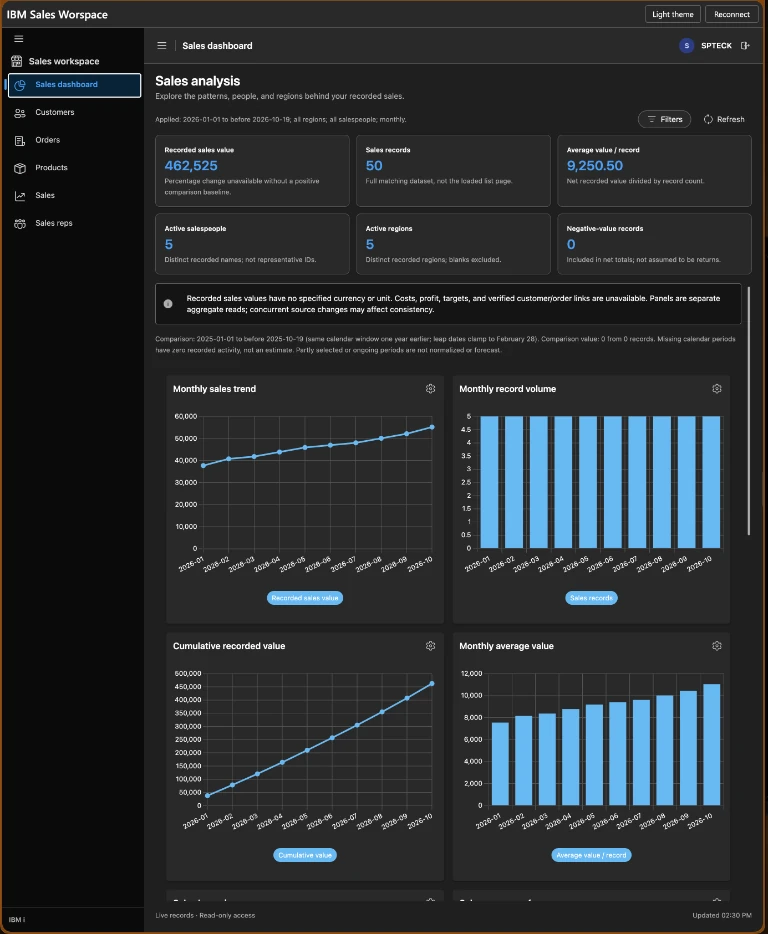
Sales analysis dashboard in the standalone web app.
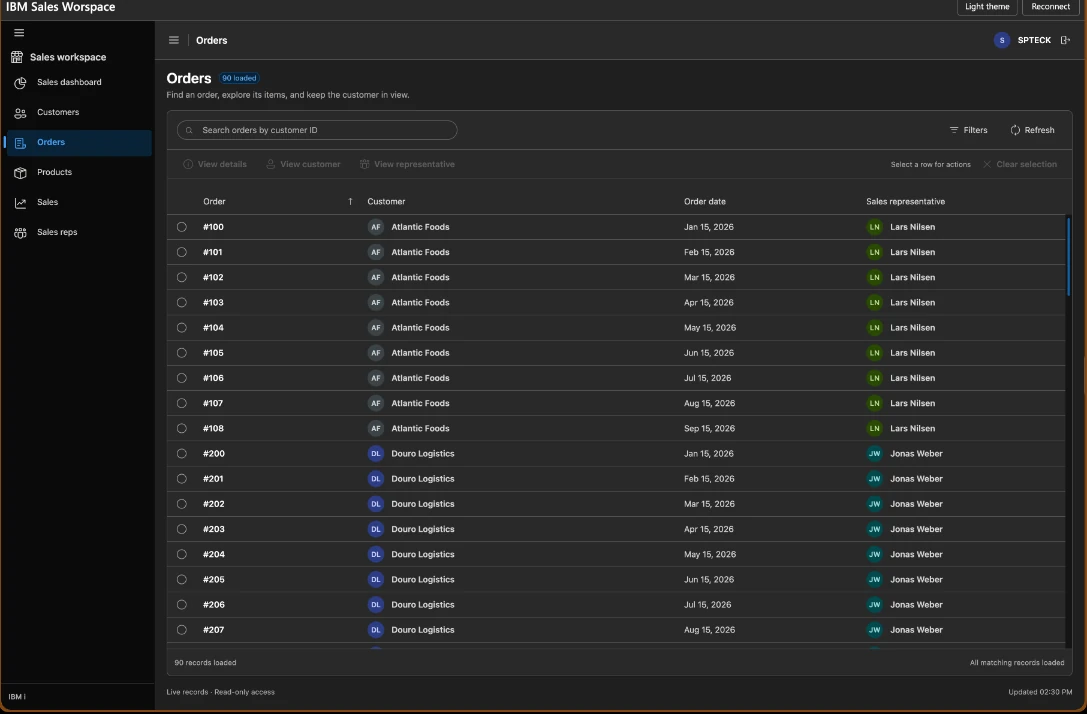
The orders list with customer, date, and representative data.
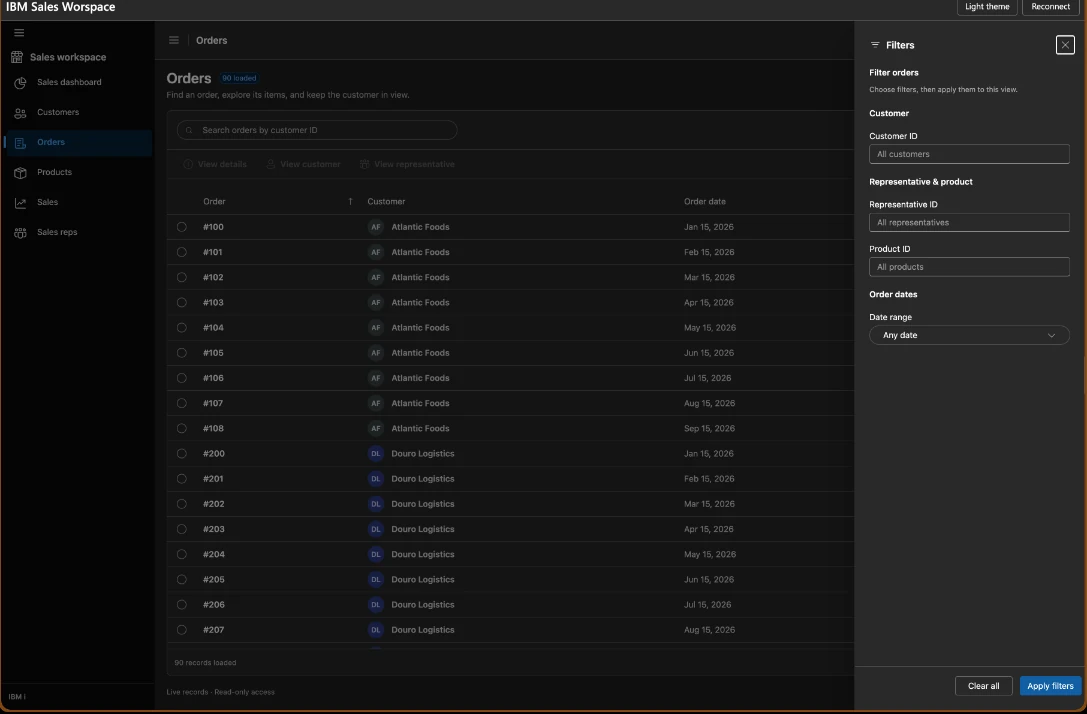
The filter panel lets users refine the order view before applying their choices.
Microsoft Copilot
In Copilot, a person can start with a natural-language request such as “Show my sales dashboard.” The Copilot experience opens the interactive workspace alongside the conversation, where the person can continue exploring the dashboard or navigate to orders.
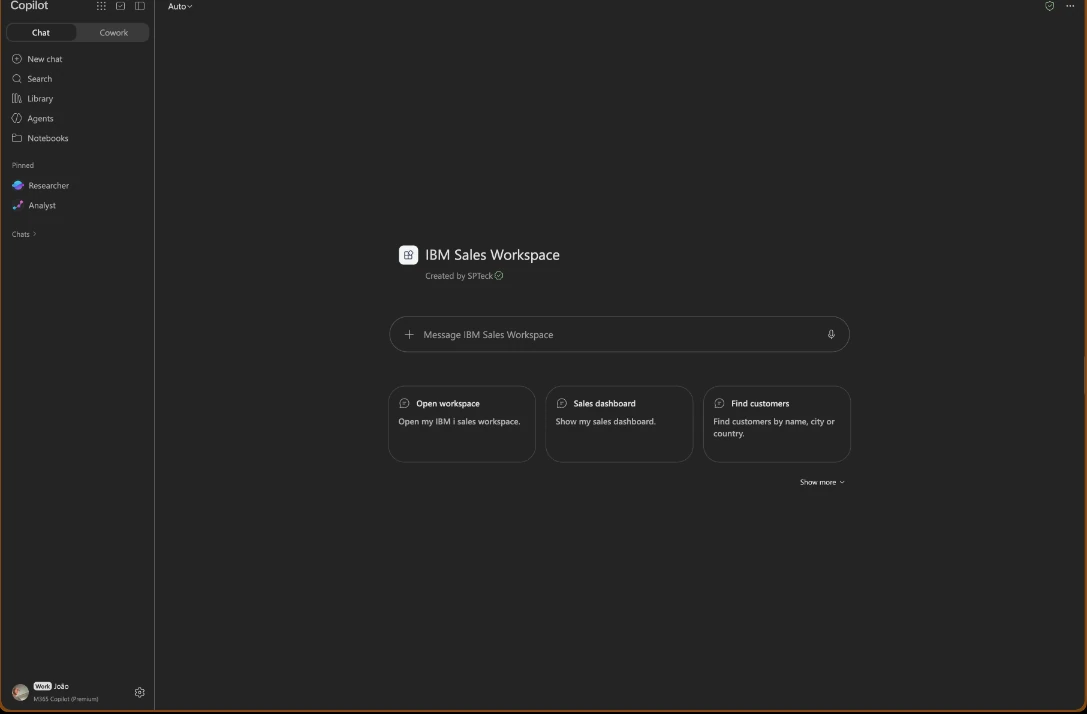
The Copilot entry point offers workspace and sales-task prompts.
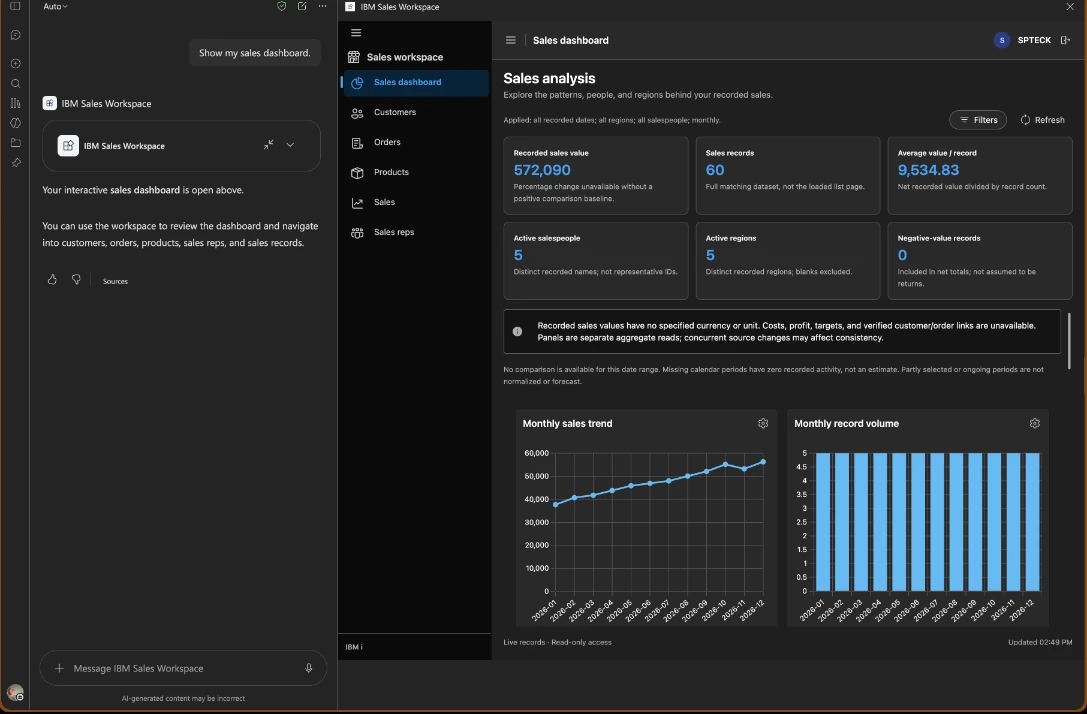
The request and assistant response sit beside the interactive sales dashboard.
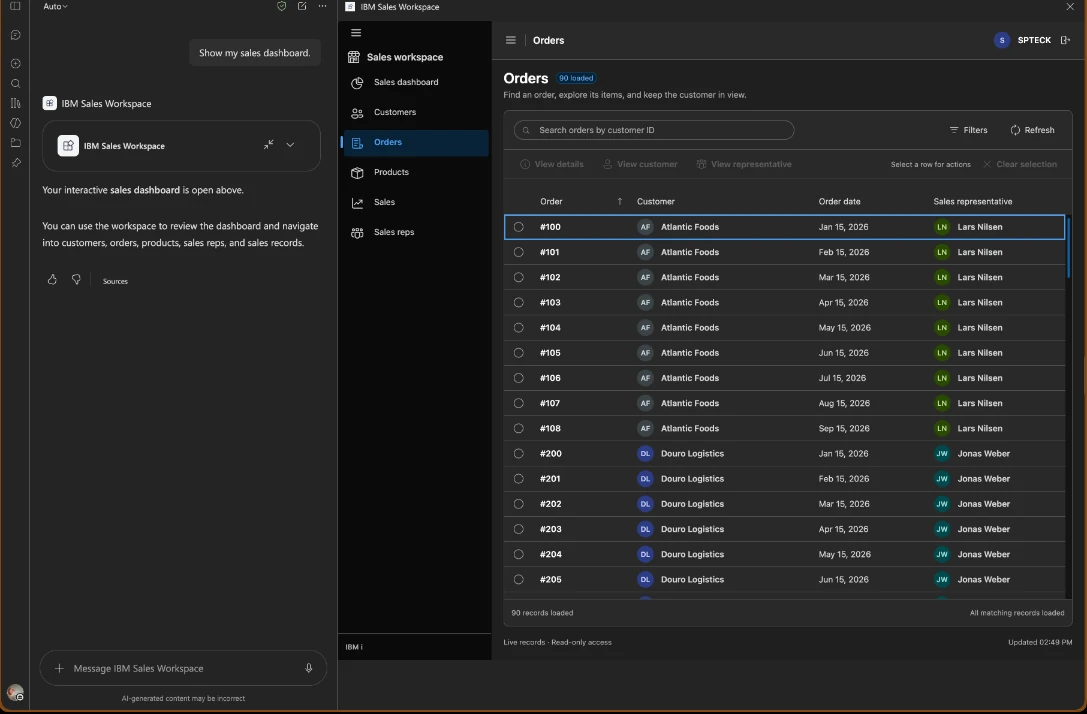
The same workspace can move from a dashboard request to browsing orders.
Claude Desktop
Claude Desktop can also host the MCP App. The conversation and the embedded interface complement one another: the assistant helps express the task, and the workspace presents structured records and analysis for further exploration.
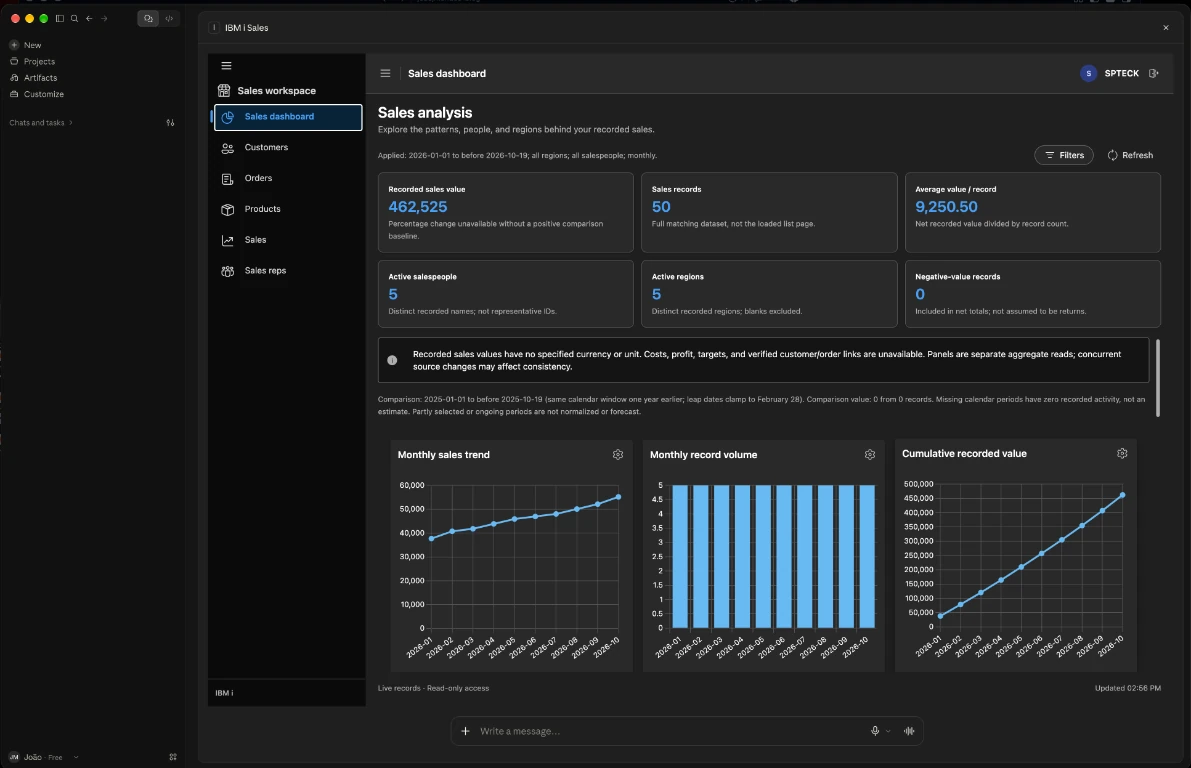
The sales dashboard rendered inside Claude Desktop.
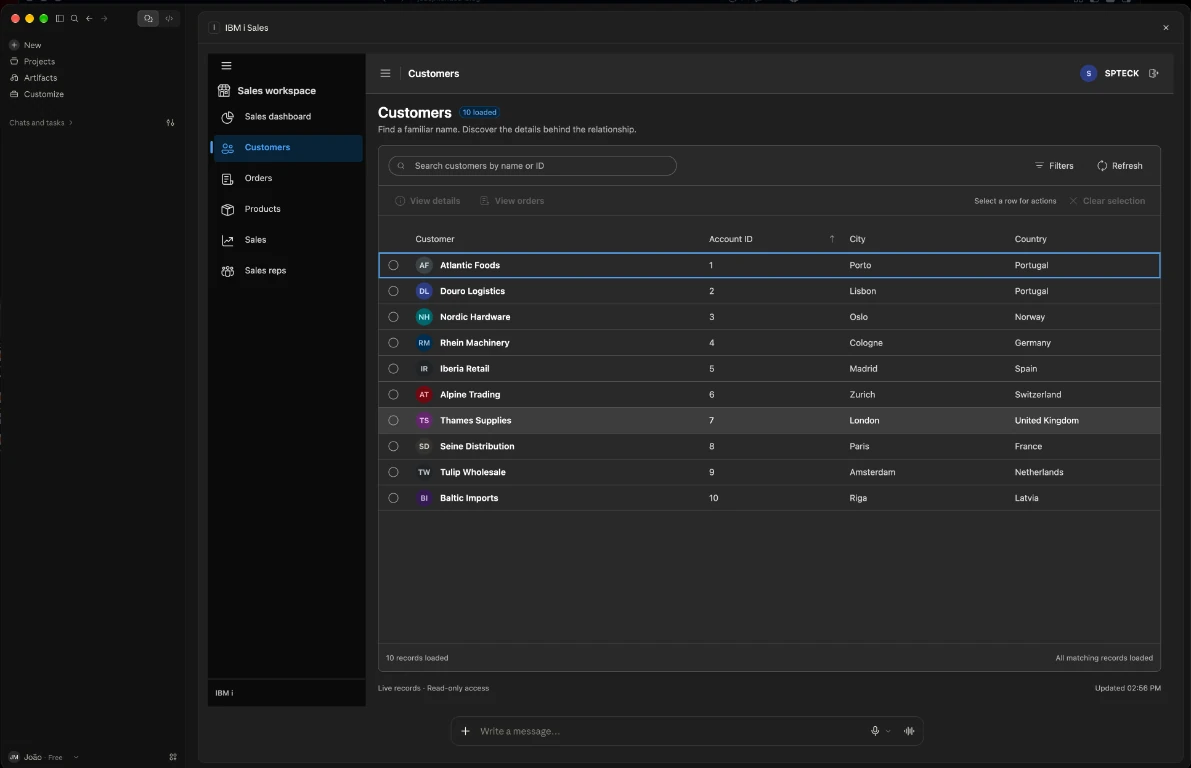
Customers remain available in the same interactive workspace.
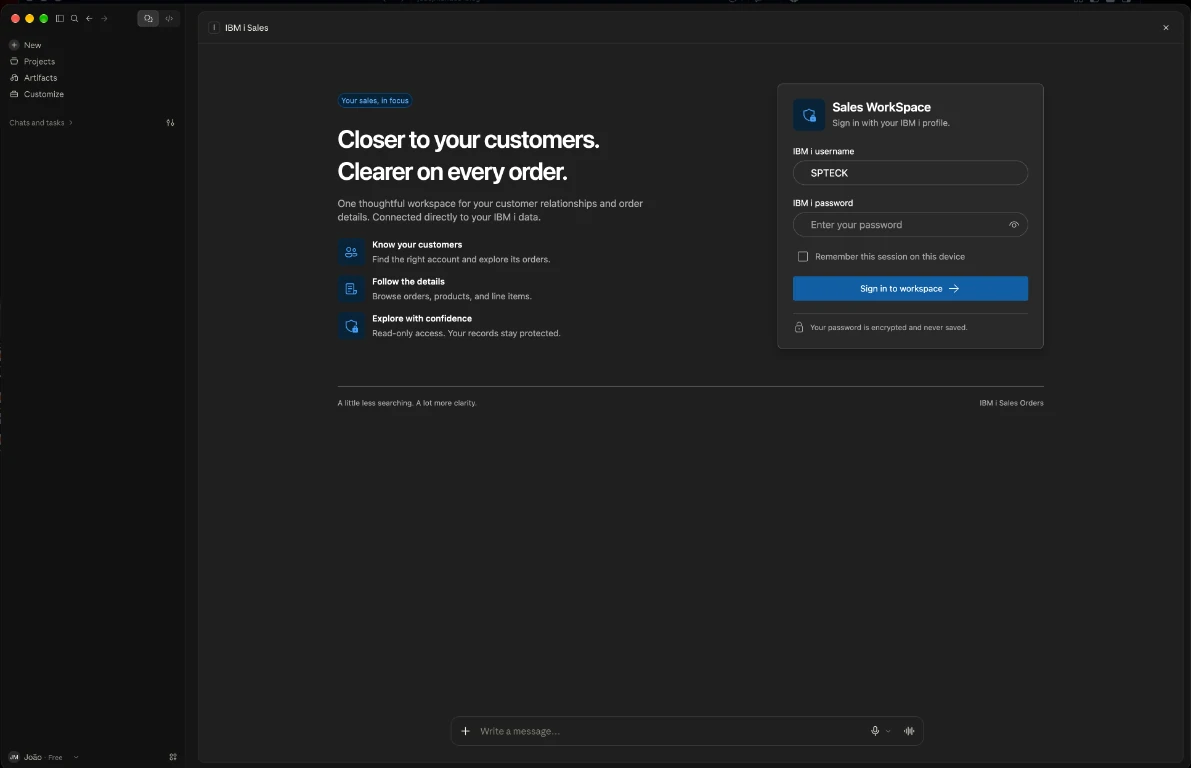
The workspace presents its sign-in flow within the host rather than asking users to send credentials in chat.
What does natural-language interaction look like?
Imagine asking:
“Show me the orders for Acme in January 2026.”
An assistant can interpret the request, resolve the customer with a customer-search tool, and then call the order-list tool with the resolved customer ID and date range. The response can include structured data for the assistant and a workspace view for the person to inspect. They can then use the UI to filter, select a row, and open order details.
The conversation and the interface work together. Natural language is useful for expressing intent; a dedicated UI is often better for exploring a result set, checking exact values, or applying several filters. The person does not have to choose one interaction style forever.
Voice follows the same principle, with one important distinction: voice is a capability of the host experience, not something MCP Apps automatically adds. If an assistant or device supports speech input, it can turn spoken language into a request and invoke the same tools. The workspace then presents the response as UI. Voice input, transcription, permissions, and confirmation behavior vary by host; the MCP App itself should not assume that it can access a microphone.
Be precise about what the sample does today
The current IBM i workspace is read-only. Its tools support searching and reading customers, orders, products, sales, and sales representatives, plus sales summaries and a dashboard. It does not create or update orders. The demo data does not provide a verified order-status history, so the application does not invent one.
That constraint is intentional. Natural language can make a request easier to express, but it does not replace authorization, validation, or a confirmation step. If write operations are added later, they should be exposed as explicit server-side capabilities with appropriate identity checks and safeguards—not implemented as unrestricted SQL or assumed from a conversational instruction.
The sample also keeps the IBM i connection and database access on the server side. The embedded UI talks to the host through the MCP bridge rather than reaching directly into the database. Sign-in is handled in the workspace; the browser encrypts credentials before sending them to the server, and tool operations are scoped to the authenticated connection. The server remains the trust boundary.
What changes for application architecture?
MCP Apps encourage us to treat the UI as a portable surface over business capabilities, rather than the only place where those capabilities can be reached.
1. Design tools around business tasks
Tools should represent clear operations such as “search customers,” “list orders,” or “summarize sales.” Give them typed inputs and outputs, useful descriptions, bounded results, and explicit constraints. Tool design affects both what an assistant can reliably request and how the UI can retrieve data.
For example, when a customer name is ambiguous, the sales tools return candidates rather than silently choosing one. Date ranges require explicit years. For paginated data, the next-page cursor must be used with the original filters and sort order. These rules matter whether a request starts in a chat or in a filter panel.
2. Keep business rules and data access on the server
The server validates arguments, enforces the available access, and talks to IBM i. That gives conversational and graphical interactions a shared set of business operations. It also avoids trusting a client-side component to enforce the real security boundary.
3. Treat the UI as a host-rendered experience
An MCP App can use host-provided context and communicate through the MCP Apps bridge. It should not assume it owns the entire browser window, controls the host’s theme, or can make arbitrary network requests from its embedded frame. Layout, sizing, authentication, and permissions need testing inside each target host.
4. Build host adapters where they add value
The standalone web host and the SPFx Copilot component are not redundant. They provide different entry points and have different hosting responsibilities, even while they reuse the MCP tools and workspace. A native MCP Apps host may provide another entry point without requiring the application team to build a complete chat client.
The goal is not to eliminate host-specific code. It is to keep that code at the integration boundary and avoid rewriting the business application for every surface.
A practical development path
For a new or modernized business application, I would approach the work in this order:
- Identify the real user tasks and the business systems that own the data.
- Expose a small set of typed MCP tools with clear descriptions and explicit read/write boundaries.
- Build a responsive MCP App UI that uses those tools through the host bridge.
- Add a standalone host when users need a direct, familiar application outside an assistant.
- Add platform-specific integrations—such as a Copilot component—when they fit the organization’s workflow.
- Test the same user journeys across the actual target hosts, including identity, permissions, viewport sizing, errors, and data boundaries.
This is not a shortcut around good application design. It makes the contracts between the server, the UI, and each host more visible—and gives us another way to reuse the application.
The bigger idea: users choose the front door
Business applications have traditionally asked users to navigate to the application first and then figure out how to complete a task. With MCP tools and UI Apps, a user can start from the application, or from a compatible assistant that understands the request and opens the relevant business experience.
That is the paradigm shift I find exciting: one set of business capabilities, an interactive UI that can travel with them, and multiple supported ways for people to work. Not “one UI magically works everywhere,” but a shared application core that can meet users in different environments without pretending that host differences do not exist.
The IBM i Sales Workspace is an experiment in that direction. The standalone app and Copilot integration are already separate, testable entry points over shared MCP capabilities, and Claude Desktop demonstrates the same MCP App resource in a compatible assistant host.
For more detail, see the MCP Apps documentation, the official modelcontextprotocol/ext-apps project, and my earlier post on using MCP servers in a React application.
Comments